

Sagar Club Change Password
Account → Change password
Already logged in? Changing your Sagar Club password takes less than a minute from account settings.
Changing your Sagar Club password regularly – and immediately after you lend your phone to anyone – is the simplest thing you can do to protect your account.
You’ll need your current password. If you’ve forgotten it, go to forgot password.
Contents
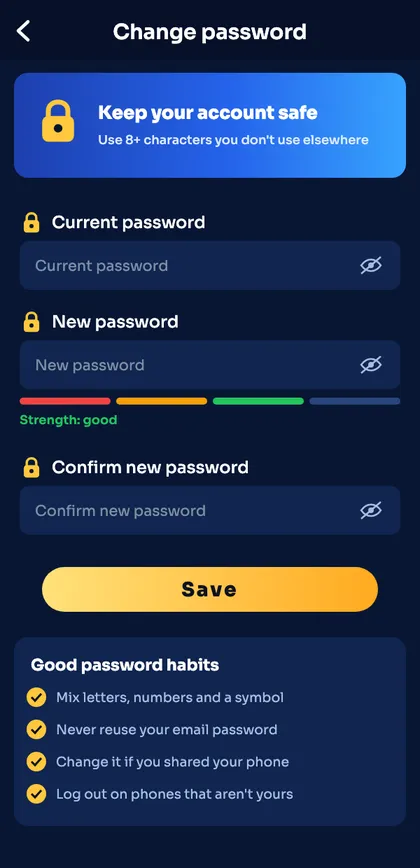
Change your password step by step
- Log in and open Account.
- Tap Change password.
- Enter your current password.
- Enter a new password – watch the strength bar turn green.
- Confirm it and tap Save.
When to change it
- Someone else used your phone or laptop.
- You logged in on a shared computer.
- You got a login alert you don’t recognise.
- You typed your password into a site you’re not sure was official.
- Every few months, just because.
What happens after you change it
Other devices where you’re logged in may be signed out. Log in again there with the new password. Turn on alerts in notifications to see future logins.
Change password vs forgot password
| Situation | Use |
|---|---|
| You know the current password | Change password (this page) |
| You don’t know it | Forgot password |
| You suspect someone else knows it | Change it now, then check login alerts |
Error messages
“Current password incorrect”
Type it again carefully; if you really don’t know it, use forgot password.
“Passwords do not match”
Retype the new password in both boxes by hand.
“Password too weak”
Make it longer and mix in numbers.
A strong password is the single best protection for your Sagar Club account. See password tips for an easy method.
Ready to open Sagar Club?
Use the official app or website. One Sagar Club account works for login on every device.
Frequently asked questions
Will changing my password log me out?
On other devices, possibly. Your current device usually stays logged in.
Can I reuse an old password?
It’s better not to.