

Sagar Club Login
Official Sagar Club login guide
Log in to your Sagar Club account with your mobile number and password in under 30 seconds – on the app, in a browser or on a laptop.
Most people searching for Sagar Club login want one thing: the right screen and a password that works. This page walks through both login methods (phone and email), shows what every field on the login screen means, and lists the fixes for the errors players actually run into.
If you don’t have an account yet, start with the Sagar Club register guide – it takes about a minute and you’ll come straight back here.
Contents
- Sagar Club login at a glance
- How to log in with your phone number
- How to log in with your email
- Sagar Club login on PC or laptop
- Common Sagar Club login errors and fixes
- Keep your Sagar Club login safe
- Sagar Club login: phone vs email
- What ‘Remember password’ really does
- Sagar Club login after a long break
- FAQs
Sagar Club login at a glance
| Login methods | Mobile number + password, or email + password |
| Country code | +91 is filled in for Indian numbers – type only the 10 digits |
| Devices | Android app, iPhone home-screen app, any mobile or desktop browser |
| Remember me | Optional tick box – use it only on your own phone |
| Forgot password | Reset with an SMS code on the forgot password page |
| Age | 18+ only |
How to log in with your phone number
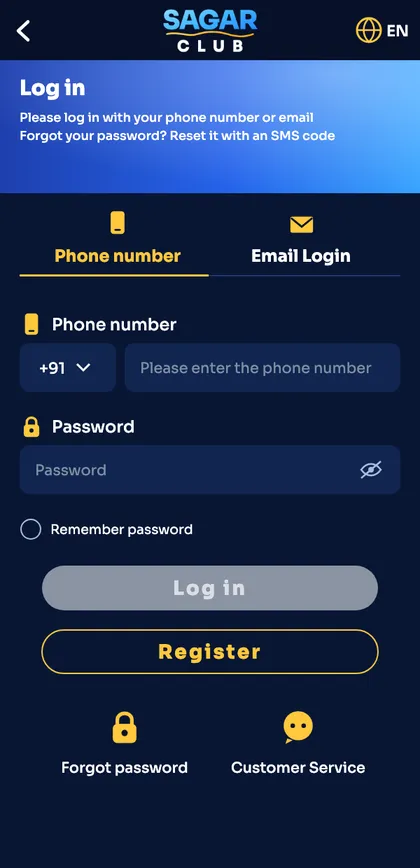
- Open the Sagar Club app, or the official website in Chrome or Safari.
- Tap Log in on the welcome screen. The Phone number tab is selected by default.
- Leave the +91 code as it is and type your 10-digit mobile number – no 0 in front.
- Type the password you set when you registered. Tap the eye icon to check it for typos.
- Tap Log in. The lobby opens with your nickname and UID at the top.
The Log in button stays grey until both fields are filled. If it never turns gold, one of the fields has a stray space.
How to log in with your email
Email login only works if you bound an email address in account settings after registering. If you never did that, use your phone number – your account still exists, it just has no email attached.
- On the login screen tap the Email Login tab.
- Type the full email address you bound, including the domain (for example name@gmail.com).
- Enter the same password you use for phone login – it is one account with one password.
- Tap Log in.
Sagar Club login on PC or laptop
The website version works in Chrome, Edge, Firefox and Safari on any computer. It opens in a phone-shaped layout in the middle of the screen – that’s normal. The full walkthrough, including keyboard tips and how to log out on a shared computer, is on the Sagar Club login on PC page.
Common Sagar Club login errors and fixes
“Account does not exist”
The number isn’t registered, or it was typed with +91 or a 0 in front. Re-enter exactly 10 digits. If it still fails, the account was made on a different number.
“Wrong password”
Check caps lock and auto-correct, which loves to capitalise the first letter. After two failed tries, reset it on the forgot password page rather than guessing.
Too many attempts / temporarily locked
Wait 15–30 minutes before trying again. Repeated guessing extends the lock. See account blocked or locked.
Page not loading
Switch between Wi-Fi and mobile data, close other tabs, or clear the browser cache. The full list is on Sagar Club login errors.
Logged out again and again
You are probably signed in on another phone, or the browser is blocking cookies. Read login on two phones.
Keep your Sagar Club login safe
- Use a password you don’t use for email, UPI or social media.
- Never share an OTP – Sagar Club support will never ask for it.
- Bookmark the official address so you never land on a look-alike site. Here’s how to check the official link.
- Turn on login alerts in notifications so you know when a new phone signs in.
- Log out on any phone or computer that isn’t yours.
Want the deeper version? The Sagar Club account security guide covers password strength, sessions and what to do if you think someone else has your login.
Sagar Club login: phone vs email
| Phone login | Email login | |
|---|---|---|
| Login ID | 10-digit mobile number | Bound email address |
| Available | Always | Only after binding an email |
| Password | Same account password | Same account password |
| Best for | Everyday login | When you’ve lost your SIM or are abroad |
| Reset | SMS code to your number | Through support or phone reset |
Phone login is the default because every Sagar Club account is created with a mobile number. Email login is a backup – useful if your SIM is lost or not working, as long as you bound the email in advance. If you haven’t, do it today in account settings.
What ‘Remember password’ really does
Ticking Remember password saves your login on that device so you don’t have to type it next time. It’s convenient on your own phone but risky on anything shared – a family tablet, an office computer or a friend’s phone. If you’ve already ticked it somewhere you shouldn’t have, log out there, then change your password to end the saved session.
Sagar Club login after a long break
- Update the app first – old versions can fail silently (app update).
- Try your usual password once.
- If it fails, go straight to forgot password – don’t guess repeatedly.
- Check the linked number is still yours; if not, see change mobile number.
Most returning players get back in within two minutes this way. The step-by-step blog post Sagar Club login step by step shows every screen if you’d like more detail.
Ready to open Sagar Club?
Use the official app or website. One Sagar Club account works for login on every device.
Frequently asked questions
What do I need for Sagar Club login?
Your registered mobile number (or bound email) and your password. Nothing else – no OTP is needed for a normal login.
Why does Sagar Club say “account does not exist”?
Usually the number was typed with an extra 0 or +91. Enter exactly 10 digits. If you are sure it’s right, you may have registered with another number.
Can I log in on two phones?
Yes, but logging in on a new phone can sign out the old one. See our post on logging in on two phones.
Is Sagar Club login the same on the app and website?
Yes. It is one account – the same number and password work everywhere.
I forgot my password. What now?
Use Forgot password on the login screen, enter your number, get the SMS code and set a new password.